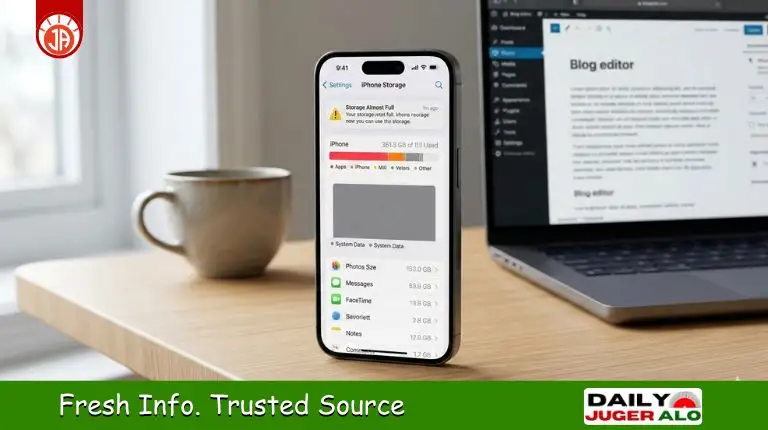
You’ve deleted videos and apps, but that suffocating “Storage Almost Full” warning is still there. Your System Data is likely eating up 30GB+ of space. It feels like invisible ghosts are hijacking your phone. 👻
Don’t delete your photos or factory reset just yet! In this 2026 guide, I’ll show you how to clear system data on iPhone and reclaim your space instantly. Let’s fix this storage madness now! 🛠️
Finding out how to clear system data on iPhone is essential because Apple provides no “Delete All” button. This category is a mix of caches and logs that can grow to 50GB! Follow this guide to free up iPhone storage without deleting photos effectively.
What Exactly is “System Data” on Your iPhone?
Before we jump into the solutions, let’s unmask the enemy. System Data is a “catch-all” bucket for everything that doesn’t fit into Apps, Photos, or Media. 📦
This typically includes:
- Safari Cache: Every website you visit leaves a tiny footprint. 🌐
- System Logs: Records of how your OS is performing.
- Streaming Caches: Temporary files from Netflix, YouTube, or Spotify.
- Siri Voices: High-quality voice files you might have downloaded. 🗣️
- Update Leftovers: Bits of code left behind after an iOS update.
The “Other System Data Fix”: Why is it Growing? 📈
The main reason your system data grows is convenience. Your iPhone stores data locally so that apps load faster. For example, if you scroll through Instagram, it caches images so you don’t have to redownload them later.
However, iOS isn’t always great at “cleaning up” after itself. That’s where we come in with the perfect other system data fix strategies.
How to Free Up iPhone Storage Without Deleting Photos 📸
Most people think they must sacrifice their photos to save space. That is a myth! Use this comparison table to see how much space you can save with other methods:
| Method | Potential Space Saved | Effort Level |
| Offload Unused Apps | 2GB – 10GB | Very Low |
| Clear Browser Cache | 500MB – 2GB | Low |
| Delete Siri Voices | 1GB – 3GB | Moderate |
| Optimize Photo Storage | 5GB – 50GB | Low |
Top 10 Ways to Clear System Data on iPhone in 2026
1. Purge Your Safari History and Website Data 🌐
Safari is a silent storage killer. It saves images and scripts from every site you’ve visited in the last year.
- Go to Settings.
- Scroll down and tap Safari.
- Tap Clear History and Website Data.
- Select All History and hit Clear History.
2. Manage Your iMessage Attachments 💬
Think about all the memes, videos, and GIFs you’ve received in iMessage. They all live in your System Data.
- Go to Settings > General > iPhone Storage.
- Find Messages.
- Tap on Review Large Attachments.
- Delete the videos or files you no longer need. This is a massive other system data fix.
3. The Magic of “Offloading” Apps 📲
If you have apps you only use once a month, don’t delete them—Offload them.
- Go to Settings > General > iPhone Storage.
- Enable Offload Unused Apps.
- The Result: Your phone deletes the app but keeps all your personal data and settings. When you redownload it, everything is back to normal.
4. Reset Your Streaming App Caches 🎧
Apps like Spotify, TikTok, and YouTube are notorious for hoarding data to provide a lag-free experience.
- Open your Spotify app settings > Storage > Clear Cache.
- Open TikTok > Settings and Privacy > Free up space > Clear Cache.
- This is one of the easiest ways to free up iPhone storage without deleting photos.
5. Limit the “Keep Messages” Duration ⏳
Do you really need a text message from 2019? Probably not. It’s just cluttering your System Data.
- Go to Settings > Messages.
- Under Message History, tap Keep Messages.
- Change it from ‘Forever’ to 30 Days or 1 Year. Your iPhone will automatically delete old junk.
6. Is Your Siri Taking Too Much Space? 🗣️
High-quality Siri voices are surprisingly large. If you’ve experimented with different accents, you might have multiple 500MB files sitting there.
- Go to Settings > Accessibility > Spoken Content > Voices.
- Check the voices you’ve downloaded.
- Swipe left to delete the ones you don’t use.
7. Delete Offline Maps and Unused Caches 🗺️
If you use Google Maps or Apple Maps offline, those downloaded areas can take up significant space.
- Open Google Maps > Tap your profile > Offline Maps.
- Remove the areas you no longer visit. This helps keep the clear system data on iPhone process effective.
8. Clear Your “Recently Deleted” Folders 🗑️
When you delete a photo or a note, it isn’t actually gone. It stays on your device for 30 days.
- Go to Photos > Albums > Recently Deleted.
- Tap Select > Delete All.
- Do the same in the Notes app.
9. Limit Background App Refresh 🔄
Excessive background activity creates constant logs and diagnostic data, bloating your System Data.
- Go to Settings > General > Background App Refresh.
- Turn it off for apps that don’t need to be updated every second.
10. The “Nuclear Option”: Backup and Restore 🔄
If your System Data is still over 15GB and won’t budge, there is likely a corrupted log file. The only 100% effective way to clear system data on iPhone in this case is a fresh install.
- Step 1: Back up to iCloud or a Computer (Essential!).
- Step 2: Go to Settings > General > Transfer or Reset iPhone.
- Step 3: Tap Erase All Content and Settings.
- Step 4: Once the phone restarts, choose Restore from Backup.
Keeping Your iPhone Lean in 2026 🚀
To prevent the dreaded storage warning from coming back, follow these simple habits:
- Restart Weekly: A simple restart clears out temporary memory (RAM) and some system caches.
- Update iOS Regularly: Apple often includes storage optimization fixes in their updates.
- Use Cloud Services: Move large files to Google Drive or iCloud Drive to keep your local storage free.
Frequently Asked Questions (FAQ)
Q1: What is the fastest way to clear System Data on my iPhone?
Ans: The fastest way is clearing your Safari history and offloading heavy apps like TikTok or Instagram. These two steps can instantly reclaim several gigabytes of space.
Q2: Does “System Data” include my photos and videos?
Ans: No. Photos and videos have their own category. System Data consists of caches, logs, and temporary files. You can free up iPhone storage without deleting photos by targeting these hidden files.
Q3: Why is my “Other” or System Data growing automatically?
Ans: It grows because iOS caches everything you stream or browse to make the phone faster. If iOS fails to auto-clean these files, you need a manual other system data fix.
Q4: Will a restart clear System Data?
Ans: A simple restart won’t delete everything, but it does flush temporary RAM caches and minor system logs. It’s a good first step to clear system data on iPhone.
Q5: Can I delete System Data without a computer?
Ans: Yes! All the steps mentioned in this guide—like managing messages, clearing browser data, and offloading apps—can be done directly in your iPhone Settings.
Final Word
Managing your iPhone storage doesn’t have to be a headache. By understanding how to clear system data on iPhone, you can keep your device running like new without spending money on a higher-storage model or deleting your favorite memories. From clearing Safari caches to offloading unused apps, these small steps make a massive difference.
Implement these tips today, and you’ll never have to see that “Storage Full” pop-up again. Keep your iPhone optimized, keep your photos safe, and enjoy a faster, cleaner digital experience! You deserve a phone that works as hard as you do. 😊