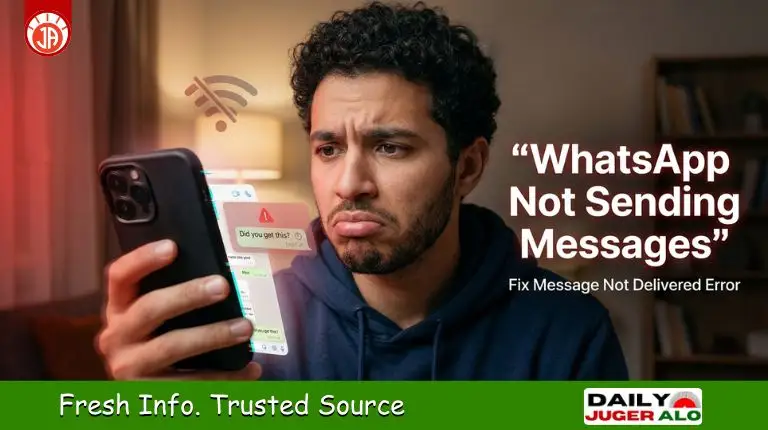
If you’re facing whatsapp not sending messages, you’re not alone. Millions of users report issues like whatsapp message not delivered, messages stuck, or even whatsapp not working today. These problems can appear suddenly and disrupt both personal and professional communication.
Whether your messages are not going through or showing a single tick, the issue can be caused by internet problems, app bugs, or device settings. The good news? Most of these issues are easy to fix.
In this guide, you’ll learn step-by-step solutions to fix message not sending on whatsapp, along with expert tips to prevent it from happening again. 📱
Why WhatsApp Messages Are Not Sending
Understanding the root cause is half the battle. If you find your whatsapp messages not going through, it is likely due to:
- Network Congestion: Poor or unstable internet signal.
- Server Outages: Global problem with whatsapp today on Meta’s side.
- App Obsolescence: Running an old version of the app.
- Corrupted Cache: Temporary files interfering with the app’s API.
- Time Desync: Device clock not matching the WhatsApp server time.
Quick Fix Checklist (Try First)
Before diving into technical steps, try these “Golden Rules” of troubleshooting:
- ✈️ Toggle Airplane Mode ON for 10 seconds, then OFF.
- 🔄 Restart your smartphone to clear temporary RAM glitches.
- 🌐 Switch from WiFi to Mobile Data (or vice versa).
- ⏹ Force Stop and reopen the WhatsApp app.
10 Proven Fixes for WhatsApp Not Sending Messages
🟢 1. Verify Your Internet Stability
A weak signal is the #1 cause for message not delivered whatsapp errors.
- Fix: Try loading a website in your browser. If it’s slow, your internet is the culprit. Restart your router or contact your ISP.
🟢 2. Monitor WhatsApp Server Status
Sometimes, it’s not you—it’s them. If there is a global whatsapp not working today trend, no amount of settings-tweaking will help.
- Action: Visit Downdetector or Twitter (X) to see if others are reporting whatsapp messages not received.
🟢 3. Force Update WhatsApp
Meta frequently pushes patches for bugs that cause whatsapp message is not sending.
- Fix: Visit the Google Play Store or Apple App Store, search for WhatsApp, and hit Update.
🟢 4. Clear WhatsApp Cache (Android)
Corrupted temporary data can “choke” the app’s ability to send media or texts.
- Steps: Settings > Apps > WhatsApp > Storage > Clear Cache. (Note: Do NOT click ‘Clear Data’ unless you have a backup).
🟢 5. Sync Date and Time Automatically
WhatsApp relies on precise timestamps for end-to-end encryption. If your phone is even 2 minutes off, it can cause message not sending in whatsapp.
- Fix: Settings > System > Date & Time > Enable “Set time automatically.”
🟢 6. Audit Your Blocked Contacts List
If a message shows a single tick or won’t send to one specific person, you might be blocked (or have accidentally blocked them).
- Check: WhatsApp > Settings > Privacy > Blocked Contacts.
🟢 7. Disable Data Saver & Battery Optimization
Aggressive power-saving modes can kill WhatsApp’s background processes.
- Fix: Turn off Low Power Mode (iPhone) or Data Saver (Android). Ensure WhatsApp has “Unrestricted” battery usage.
🟢 8. Manage Your Internal Storage
WhatsApp requires at least 200MB–500MB of free space to process incoming and outgoing messages.
- Fix: Delete large videos or unused apps to free up space.
🟢 9. Perform a Clean Reinstall
If the app continues to crash or fail, a fresh installation is the best “hard reset.”
- Steps: Backup your chats to Google Drive/iCloud > Uninstall > Reinstall from official store.
🟢 10. Reset Network Settings
If whatsapp is not sending messages on any network, your phone’s network configuration might be corrupted.
- Action: Settings > General Management > Reset > Reset Network Settings.
Read More: Apple Chooses Google Gemini to Power Its Next-Generation Siri
Advanced Tips (Expert Level)
- Disable VPN: Some VPN servers are flagged or blocked by WhatsApp’s security protocols.
- Check Background Data: Ensure “Background Data” is enabled for WhatsApp in your app settings.
- Update OS: Sometimes a system-level software update is required to keep apps running smoothly.
How to Prevent This Problem
- Auto-Update: Enable auto-updates in the Play Store/App Store.
- Regular Backups: Ensure daily backups to prevent data loss during reinstalls.
- Avoid Modded Apps: Never use GBWhatsApp or WhatsApp Plus; they are prone to server bans.
Final Thoughts
The whatsapp not sending messages problem is usually a temporary glitch that can be resolved in under five minutes. By following the checklist above—from checking your internet to syncing your clock—you can resolve 99% of delivery errors.
If the problem persists, it is likely a server-side issue. In such cases, the best solution is simply to wait. Found this guide helpful? Share it with a friend who’s struggling with their chats today! 📲
Disclaimer: This guide is for informational purposes. Results may vary based on your specific device model, operating system version, and regional network restrictions. Always ensure you have a recent chat backup before modifying app settings.